You work with brokers
Different brokers. Different paperwork. Send their OFSs to one address. After your one-time setup, MoveBoss chooses the right contract and fills in the job details automatically.
Broker A → Contract A · Broker B → Contract B
From an emailed OFS to a signed contract
Email an order for service (OFS) to your workspace’s dedicated inbox. MoveBoss reads the job details, chooses the right contract, and fills it automatically. Your crew updates and signs that same contract on a phone or iPad.
Set up your paperwork once. Send each new OFS to your workspace’s own address.
Any moving CRM. No special integration.Keep Granot, Doctor Move, or the system you already use. Send each OFS to the dedicated inbox inside your company’s workspace.
Just email the OFS to one company address. No CRM integration needed.
Loading the document pages…
Please prepare the paperwork for this move.
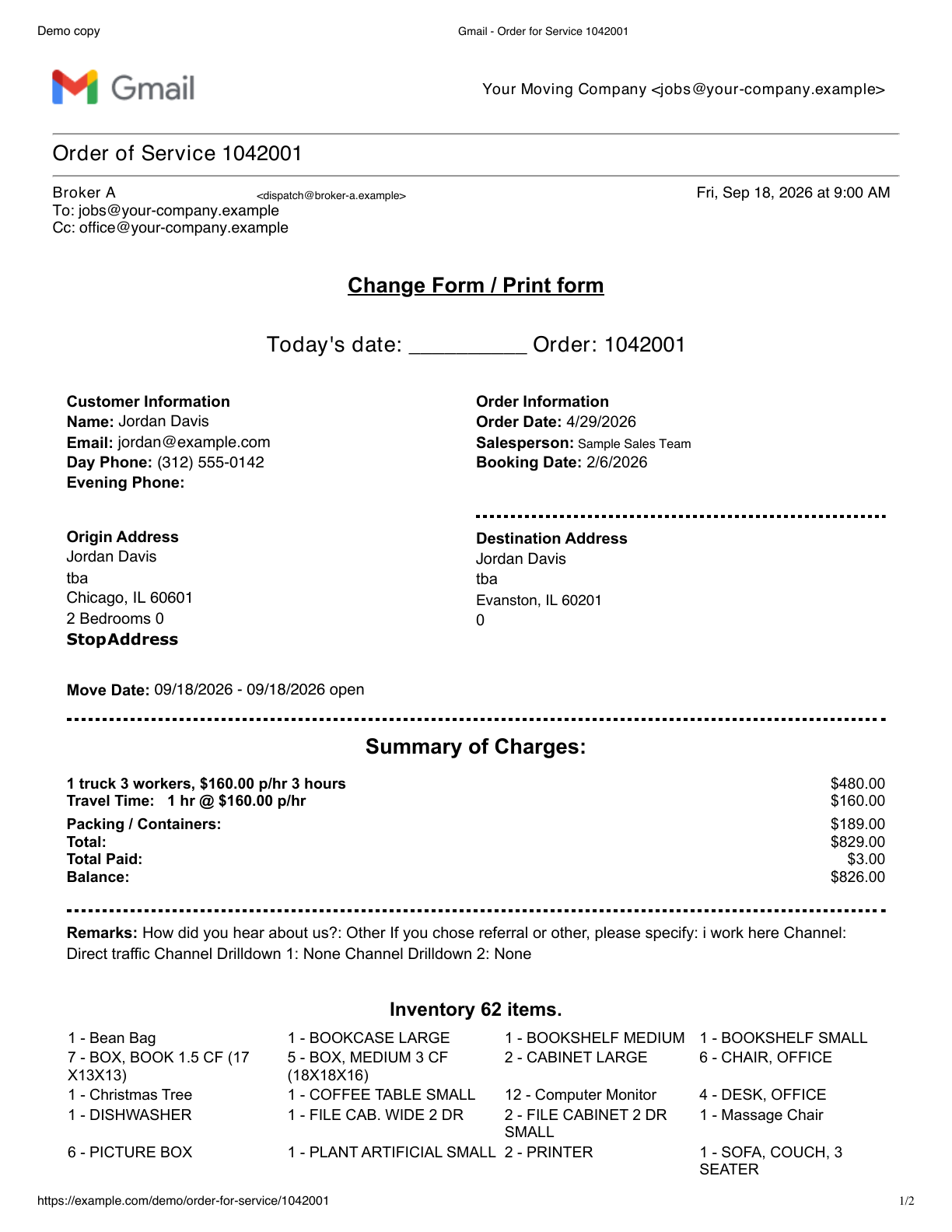
All your booking sources send here
From your office. To their hands.
Assigned jobs for your driver. A delivery link for another carrier.
Your paperwork, ready on the device they already carry.
Your jobs
Tap a card to see the contract and the next step for pickup or delivery.
3 active jobs
To sign at pickup · 2
Awaiting delivery sign-off · 1
Tap the controls. Scroll inside the device.
See the actual workflow
See OFS details become a filled contract, then follow the office, pickup crew, and delivery carrier through the app with sample data.
Keep your CRM. Just email the OFS. Book the job as usual, then send or forward the order for service to your workspace’s own OFS address. No special CRM integration to connect.
One email addressHowever you get your jobs
A mailbox full of different OFSs can become a single, familiar process for your office and crew.
Different brokers. Different paperwork. Send their OFSs to one address. After your one-time setup, MoveBoss chooses the right contract and fills in the job details automatically.
Keep selling in your CRM and keep the contract you already use. Forward your booked jobs to MoveBoss to fill that contract automatically and let your foremen and drivers complete it on their phones or iPads.
Bring broker jobs and your own bookings into the same workflow. Each source can use its own contract, while your office manages the jobs together.
Set it up once. Use it for the next job.
MoveBoss reads names, addresses, dates, and prices from the OFS and fills them into the right contract. You show it where everything belongs once.
Explore the workflowYour workspace comes with a dedicated OFS email address and company inbox. Forward from your CRM, or have a broker send straight to it. There is no mailbox to buy or DNS to set up.
Start with your existing blank contract PDF, whether it belongs to your company or a broker. Keep its familiar layout and add the versions you need for different kinds of moves.
Choose the broker or booking source that uses each contract. MoveBoss recognizes the incoming email by who sent it, its subject, or the kind of move.
Show where names, addresses, dates, and prices belong on your contract. Choose the extra charges your crew can enter and where everyone signs. Check a sample once, then reuse that setup for the next job.
Then the daily work gets simpler: forward the next OFS, review the prepared job, and assign the crew.
One job. Everyone on the same page.
At pickup
At delivery
Back in the office
Put a number on the copying
Think about the time spent moving names, addresses, move details, and charges from an OFS into a contract. Now multiply that by your booked jobs.
Use your own numbers. The starting values are illustrative, and this estimates manual copying time, not guaranteed savings.
Currently spent copying OFS details into contracts.
Jobs × minutes per job ÷ 60. Setup and review still take time.
Built from a real moving company’s workflow
MoveBoss began with a moving company’s everyday problem: office staff copying the same job details from orders for service into contract PDFs, one booking at a time.
Now the OFS fills the right contract automatically, and that familiar paperwork travels with the crew digitally. No retyping mapped job details, printing for signatures, or chasing photos of signed pages.
One plan for your whole company
$99/month or $900/year per company.
Annual billing works out to $75/month, paid as $900 once a year.
Intake, signing, carrier sharing, live notifications and all other OFS features are included.
Try it for 14 days. No credit card required. A subscription starts only when you choose it and complete checkout.
A few practical questions
One plan for your company: $99/month or $900/year ($75/month, billed annually). Both include unlimited jobs, unlimited staff and all OFS features. Start with a 14-day trial without a credit card. When the trial ends, new imports are held until you subscribe; existing jobs and signed documents remain accessible. A paid subscription starts only when you choose it and complete checkout.
Yes. Start with your blank contract PDF. Map the job fields and add the signature spots during setup. MoveBoss fills the mapped fields from the incoming OFS, and your crew opens that familiar contract on a phone or iPad to make permitted updates and collect signatures by touch. The office can follow progress and access the completed contract PDF without printing it for signatures.
Keep Granot, Doctor Move, or any moving CRM you already use. If it can email or download an order for service, send that OFS to your MoveBoss email address. There is no special CRM integration to connect. Set up your contracts and check sample OFSs from your booking sources once; then send each new OFS to the same address.
Your company gets a dedicated OFS email address inside its MoveBoss workspace. Forward an OFS from your CRM, or give that address to a broker. The original email and attachment appear in your company’s inbox, where MoveBoss automatically reads the job details and fills the matching contract using your saved setup.
You choose which contract belongs to each broker or booking source during setup. MoveBoss recognizes the email by its sender, subject, or move type and fills the matching contract. If more than one contract matches, the job waits for your office to choose. Missing or unclear details also need an office review before the paperwork is prepared.
Yes. Add each broker’s contract and choose when to use it. Your own bookings can use your company’s contract. All of their OFSs go to the same email address.
Add your contracts, choose when to use each one, and show where the job details and signatures belong. Check a sample OFS from each booking source to make sure its details are read correctly. Missing or unclear information is left for your office to review.
The office assigns the job. Your driver or foreman opens it on a phone or iPad, reviews the contract, adds any allowed changes or charges, and saves. The updated contract is shown for review with the customer before anyone signs. The office sees the saved changes with the job.
Yes, when you enable those charges for the contract and allow that crew member to make changes. For extra volume, the crew enters the additional cubic feet and the price per extra cubic foot. They can also enter extra packing, labor, travel, or other service charges. MoveBoss updates the total and balance, prepares the revised contract, and requires a review before signing. You choose which fields and charges the crew can change during setup.
Scan the physical inventory your crew completed on site, choose page photos, or import a scanned PDF. Check the corners, readable handwriting and page order, then confirm the customer and crew signature spaces on every page. The pickup inventory and its signatures stay with the job for your delivery driver or carrier to review and sign. The booking inventory on the OFS does not replace the inventory made at pickup.
Yes. Choose the company forms, when they are required, and who signs first. Your crew follows the saved sequence: before-work authorizations, physical inventory, required pickup paperwork, then the main contract. At delivery, the same inventory and required delivery documents are reviewed before final signing. Signed pages and their recorded signatures stay with the job.
You can assign delivery to your own driver, or send a delivery signing link to a carrier who does not have a MoveBoss account. With delivery signature spots configured, the recipient can open the link on a phone or tablet, review the paperwork, and collect the required delivery signatures.
Your company. Your paperwork.
Keep your CRM. Add your existing contracts. Let each OFS prepare the paperwork for your crew, from pickup to the final delivery signature.